Passkeys (WebAuthn)
Passkey provides a more secure and user-friendly alternative to traditional passwords. By using public-key cryptography, passkey enhances security by linking the user's device, the service domain, and the user ID, effectively countering phishing and password attacks. Compatible with various devices or browsers, and allows users to employ biometrics and hardware security features for convenient authentication. WebAuthn provide the API to allow websites to implement passkey.
Logto supports passkeys (WebAuthn) for both Multi-Factor Authentication (MFA) and passkey sign-in. The same underlying WebAuthn credential can be reused in both places, depending on your tenant configuration.
Concepts
Customers always know Passkeys rather than WebAuthn, so what’s the relationship between them, and how to use them? Let's explore these concepts:
- Passkeys: A passkey is a FIDO-based, phishing-resistant credential to replace passwords. It utilizes asymmetric public-key cryptography for enhanced security. It can be hardware tokens or security keys, such as USB or Bluetooth devices. Since "Passkeys" is the authentication method displayed to users, it should be used within your product client.
- WebAuthn: It is a JavaScript API developed by the W3C and FIDO Alliance, that empowers web applications authentication with FIDO2 standards. Passkeys is one of the authentication methods WebAuthn supports. In the Logto Console, we professionally refer to this integration as "WebAuthn.”
WebAuthn provides diverse authenticators for users to choose from, available in two types for local and cloud usage:
- Platform authenticator (Internal authenticator): It is tied to a single and specific device OS, such as a computer, laptop, phone, or tablet, which the user signs in with. It works exclusively on the device for authorization using methods like biometrics or a device passcode, so it's a quick way to authenticate. E,g,. iCloud Keychain verified by Touch ID, Face ID, or device passcode on macOS or iOS; Windows Hello verified by facial recognition, fingerprint, or friendly PIN.
- Roaming authenticator (External authenticator, Cross-platform authenticator): It is a separate, portable device or software application, such as a hardware security key or a smartphone. It should link the device using USB or keeping NFC or Bluetooth on. The roaming authenticator is not limited to a single device or browser, providing greater flexibility.
To delve deeper into the principles and processes of WebAuthn, you can refer to our blog posts: WebAuthn and Passkeys 101 and Things you should know before integrating WebAuthn.
Configure passkeys verification for MFA
- Navigate to Console > Multi-factor authentication
- Enable the "Passkeys (WebAuthn)" factor. Recommend to use Passkeys in combination with other MFA factors (TOTP, SMS, backup codes) to reduce single-factor dependency.
- Configure your preferred MFA policy (required vs. optional)
- Save your configuration changes
If the same user signs in with passkey sign-in, Logto will skip the separate MFA verification step. A passkey sign-in already satisfies the WebAuthn-based verification requirement.
It's essential to be aware of some limitations when implementing WebAuthn:
- Platform and browser limitation: It's important to note that Logto does not currently offer WebAuthn support for native applications. Additionally, the availability of WebAuthn authenticators depends on browser and device capabilities (Check the list). Therefore, WebAuthn is always not the sole option for implementing Multi-Factor Authentication (MFA), otherwise, you can control which browsers and devices can access your product.
- Domain limitation: Changing the domain can hinder user verification through their existing WebAuthn accounts. Passkeys are bound to the specific domain of the current web page and cannot be used across different domains.
- Device limitation: Losing the device can result in a loss of access to their accounts, especially for those relying on "This device" Platform Authenticators. To enhance authentication access, it's advisable to provide users with more than one authentication factor.
Configure passkeys management
You can use the Account API to build custom account management interfaces where users can add, view, rename, and remove their passkeys. This is useful for creating personalized account centers and enabling cross-device backup scenarios.
For detailed implementation steps and API endpoints, see Account settings by Account API.
Export passkeys
You can export the WebAuthn credentials Logto stores for a user with the Management API. Use the export to move passkeys to another system that serves WebAuthn on the same domain, so users can keep signing in with their existing passkeys.
Call GET /api/users/{userId}/mfa-verifications with the includeWebAuthnCredentials query parameter set to true:
curl "https://[tenant-id].logto.app/api/users/{userId}/mfa-verifications?includeWebAuthnCredentials=true" \
  -H 'authorization: Bearer <management-api-access-token>'
Each WebAuthn entry in the response includes the stored credential:
[
  {
    "id": "wv9m3k2x7p1q",
    "createdAt": "2026-10-12T08:31:24.000Z",
    "lastUsedAt": "2026-11-02T06:15:09.000Z",
    "type": "WebAuthn",
    "agent": "Mozilla/5.0 (Macintosh) ...",
    "name": "MacBook",
    "rpId": "auth.example.com",
    "credentialId": "Ab3dY0n9Kq2LwX8mR4sT1uV6zE",
    "publicKey": "pQECAyYgASFYIOrE5x...",
    "counter": 0,
    "transports": ["internal", "hybrid"]
  }
]
| Field | Description |
|---|---|
credentialId | The WebAuthn credential ID, base64url-encoded. |
publicKey | The credential public key in COSE format, base64url-encoded. |
counter | The last signature counter (signCount) Logto saw for the credential. Many passkeys always report 0. |
transports | The transports the authenticator reported at registration, such as internal, hybrid, or usb. |
rpId | The relying party ID (domain) the credential was registered for. |
createdAt | When the credential was registered. |
lastUsedAt | When the credential was last used to verify the user. |
Without includeWebAuthnCredentials, the response omits credentialId, publicKey, counter, transports, and rpId. Other MFA factors are returned unchanged. The parameter also works with read-only Management API access, because a credential ID and public key cannot be used to sign in.
When you import the credentials into another system:
- Keep the same domain. A passkey only works on the relying party ID it was registered for. The other system must use the exported
rpIdas its WebAuthn relying party ID, which means serving sign-in on that domain, such as your custom domain. - Handle credentials without
rpId. Credentials registered before Logto started recording the relying party ID, and not used since, have norpId. They are bound to the domain that served the sign-in page when they were registered, which may not be your current custom domain. - Map the user handle. Logto registers the UTF-8 bytes of the Logto user ID as the WebAuthn
userHandle. For passkey sign-in, the authenticator returns this value, so the other system must map it to the migrated user. - Keep the counter. Store
counteras the credential's current signature counter, so the other system can continue to detect cloned authenticators.
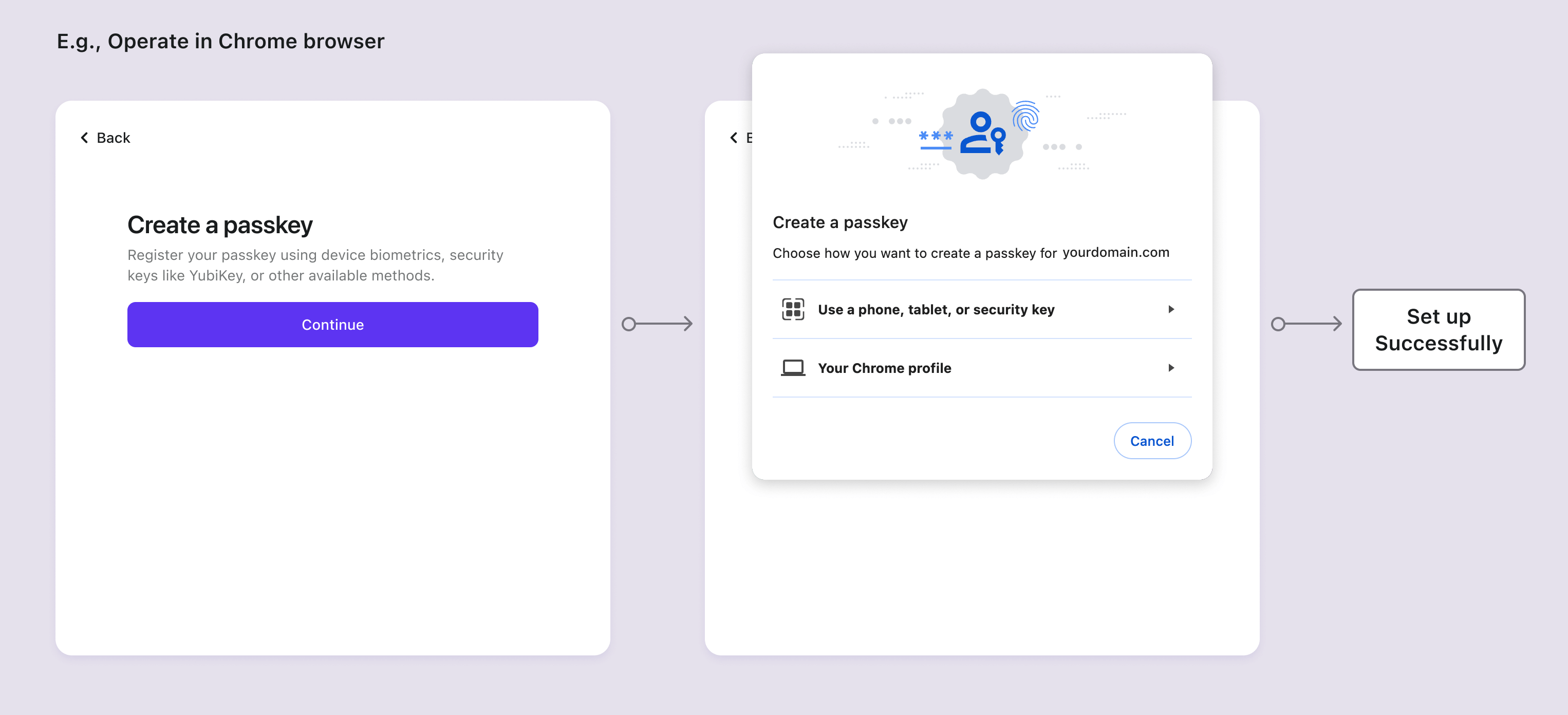
Passkey setup flows
The Passkeys specification requires users to actively click the button on the current page to initiate the authentication component. This means that in both the setup and verification flows, users should be redirected to the landing page to initiate WebAuthn.
Passkey verification flows
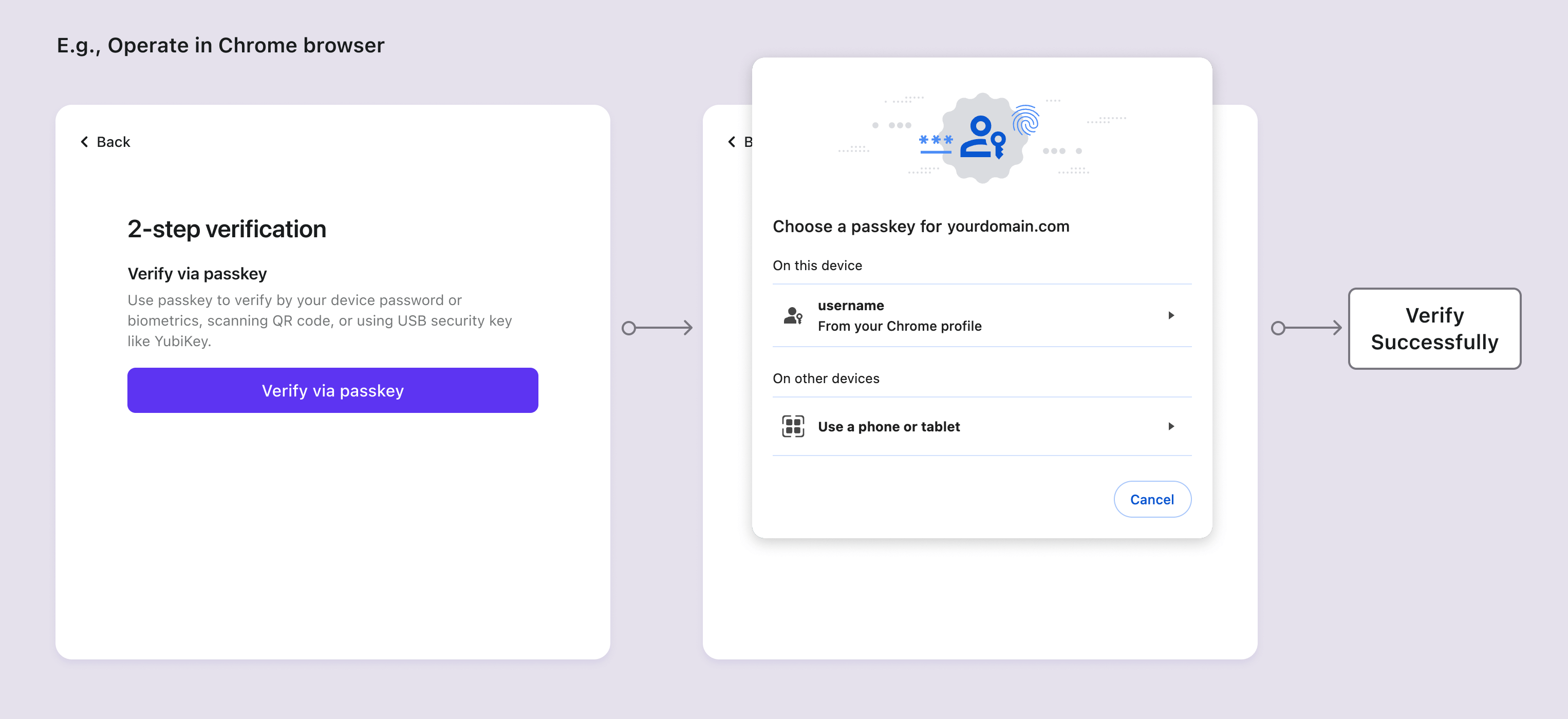
When users have set up multiple MFA methods including passkeys, passkey will be presented as the recommended MFA verification method on the first screen due to its enhanced security and convenience. Users can switch to other verification methods by clicking "Try another method to verify" below. Read Configure MFA to learn more.
If the user completes the sign-in with passkey sign-in instead of entering another first factor, Logto will not ask for an extra MFA step afterward. This is because the passkey itself is treated as a WebAuthn MFA factor.
Related resources
Things you should know before integrating WebAuthn
WebAuthn and Passkey 101